
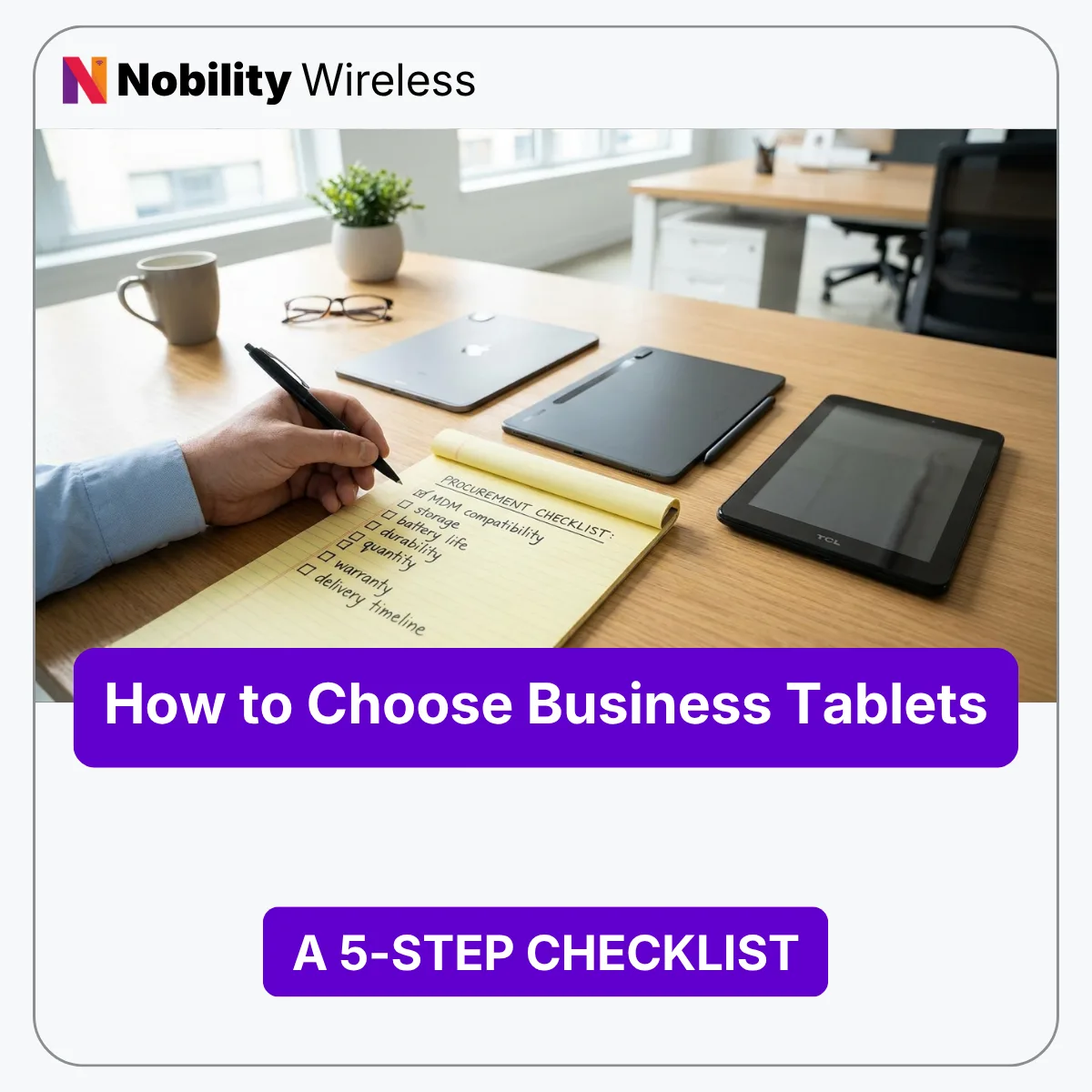
Learning how to choose business tablets starts with defining your team’s operating system, security, management, and deployment requirements.
How to Choose Business Tablets: A 5-Step Checklist
1. Start With the Operating System
Your existing software, identity tools, and workforce needs should guide the platform choice.
- Android tablets: Flexible, configurable, and well suited to logistics, retail, field teams, and custom workflows. Review Android Enterprise requirements if centralized management is important.
- iPads: A strong choice for organizations already using Apple hardware, Apple Business Manager, or iPad-specific apps. Learn more through Apple Business Manager.
- Windows tablets: Useful when teams need full desktop applications, Microsoft workflows, or a hybrid laptop-tablet experience.
For smartphone fleet planning, see our business smartphone guide.

2. Confirm Management and Security Requirements
Before choosing hardware, confirm how devices will be enrolled, secured, updated, and supported after deployment. A tablet that looks right on paper can create unnecessary work for IT if it cannot be managed through your existing tools or does not meet your organization’s security standards.
Start by documenting your mobile device management (MDM) platform, identity provider, required apps, Wi-Fi configuration, VPN requirements, and rules for lost or replaced devices. If devices will be shared between employees, also plan for separate user profiles, kiosk mode, restricted settings, and a secure reset process between shifts.
- Samsung Knox: Supports management and enrollment for compatible Galaxy devices. Visit the Samsung Knox platform for current capabilities.
- Android Zero-Touch: Helps organizations enroll eligible Android devices at scale. See Android Zero-Touch Enrollment.
- Apple Business Manager: Enables automated enrollment, supervision, and app deployment for eligible Apple devices.
Security planning should also cover passcode requirements, biometric authentication, encryption, approved app lists, operating-system updates, remote lock and wipe policies, and access to sensitive company data. For regulated environments, involve IT and compliance stakeholders before standardizing on a device family.
For more on deployment-ready hardware, explore MDM-ready devices for enterprise procurement.
3. Match Performance to the Job
Choose specifications based on the applications your teams use every day—not simply the highest available specifications. A tablet used for digital forms and email has very different requirements from one used for CAD files, video, warehouse scanning, point-of-sale workflows, or clinical documentation.
- Standard productivity: Email, browser-based tools, forms, scheduling, messaging, and video calls typically need dependable battery life, at least 4GB of RAM, and adequate storage for managed apps and system updates.
- Demanding workflows: Multitasking, large files, image-heavy documentation, field applications, and data-intensive software may require more memory, faster processors, and 256GB or more of storage.
- Field deployments: Prioritize ruggedness, long battery life, bright displays, cellular connectivity, and accessories such as cases, mounts, keyboards, chargers, or styluses.
- Shared-device programs: Consider how quickly the tablet can be signed out, charged, cleaned, reassigned, and returned to a standard configuration for the next user.
Battery expectations should reflect a real shift or workday, not only ideal conditions. Navigation, cellular data, barcode scanning, video calls, high screen brightness, and background apps can all affect runtime. If teams work away from desks, evaluate charging docks, vehicle mounts, spare chargers, and battery-management policies at the same time as the hardware.
Storage is another common planning gap. Managed apps, offline files, photos, system updates, and downloaded training materials can consume more space than expected. Define the minimum usable storage level for the full expected life of the device, rather than selecting a configuration based only on day-one requirements.
4. Consider the Deployment Environment
Tablet requirements change substantially by industry, location, and the way each device will be used. Consider physical conditions, connectivity, peripherals, and the cost of downtime before making a final selection.
- Retail and hospitality: Look for POS compatibility, durable cases, reliable Wi-Fi, easy charging solutions, and accessories that support customer-facing or inventory workflows.
- Healthcare: Consider secure access, shared-device workflows, cleaning requirements, mobile charting tools, and MDM controls that support your organization’s policies.
- Logistics and field service: Evaluate cellular connectivity, ruggedness, battery life, mount compatibility, barcode-scanning needs, and screen visibility outdoors.
- Education and training: Plan for shared use, content controls, enrollment, storage, charging, protective cases, and accessories. See our education deployment guide.
- Corporate and hybrid teams: Prioritize video-conferencing quality, document access, keyboard support, portability, and compatibility with the organization’s existing collaboration tools.
It is often helpful to run a small pilot before a full rollout. Give a representative group of users access to the proposed device, accessories, apps, and network setup. Their feedback can uncover issues with screen size, battery life, durability, case fit, mobile coverage, or app performance before they affect a larger deployment.
5. Plan for Accessories, Support, and Lifecycle
A tablet deployment is more than the device itself. Accessories and operational support can have a major effect on usability, device lifespan, and total cost of ownership.
For each role, determine whether users need a protective case, screen protector, charging dock, keyboard, stylus, shoulder strap, hand strap, vehicle mount, barcode scanner, or replacement charger. Standardizing these accessories can simplify purchasing and reduce support issues across locations.
You should also define a lifecycle plan. Consider how long the device must remain supported, how operating-system updates will be handled, what happens when a device is damaged or lost, and whether replacement units must match the existing fleet. Planning for refreshes and replacements upfront helps prevent mixed hardware, inconsistent configurations, and unplanned downtime later.
6. Build a Clear Device Requirement List
Before reviewing models, document the requirements that matter to your organization. A clear checklist helps IT, procurement, operations, and finance evaluate the same criteria.
- Operating system and required applications
- MDM platform and enrollment method
- Minimum storage, memory, processor, and battery requirements
- Connectivity needs, including Wi-Fi, cellular, Bluetooth, GPS, and carrier compatibility
- Durability, environmental requirements, and protective accessories
- Accessibility needs, including screen size, stylus support, or keyboard use
- Deployment timeline, support expectations, and replacement plan
- Budget, lifecycle length, and expected number of devices
A written requirements list makes it easier to compare options objectively and avoid mismatched devices during rollout. It also gives your organization a repeatable process when new departments, locations, or teams need devices in the future.
How to Choose Business Tablets: Frequently Asked Questions
Use these questions to create a practical tablet requirement list before comparing specific models.
What should a business evaluate before choosing tablets?
Start with the deployment, not the device. Document the applications employees need, operating-system requirements, security policies, MDM platform, connectivity, expected battery life, accessories, and planned lifecycle. This creates a consistent standard for comparing models.
Should we choose Android tablets, iPads, or Windows tablets?
The right operating system depends on your existing environment. iPads often fit organizations already using Apple Business Manager and Apple-first applications. Android tablets can support flexible, configurable field, retail, logistics, and kiosk workflows. Windows tablets can make sense when teams need desktop software or Microsoft-heavy workflows.
Prioritize compatibility with your required apps, identity tools, management platform, and employee workflows over a single “best” platform.
How much storage, memory, and battery life do business tablets need?
For email, browser-based tools, forms, and scheduling, dependable battery life and baseline memory may be sufficient. For field applications, image-heavy files, multitasking, offline content, or specialized software, plan for more RAM, greater storage, and stronger processing performance.
Also consider the entire workday: cellular use, GPS, video calls, screen brightness, and background apps can reduce battery life faster than basic specifications suggest.
What MDM and security requirements should IT confirm?
Confirm that the device can be enrolled into your MDM platform and supports your organization’s passcode, encryption, app-management, update, remote-lock, and remote-wipe policies. Shared-device programs may also require kiosk mode, separate user access, restricted settings, and a reliable reset process between users.
Before a larger rollout, IT should test enrollment, required applications, Wi-Fi configuration, identity access, and security controls on a small pilot group.
How do accessories and deployment conditions affect the decision?
Accessories can be as important as the tablet itself. Field teams may need rugged cases, vehicle mounts, hand straps, barcode scanners, cellular service, and vehicle charging. Office teams may benefit from keyboards, docks, styluses, and video-conferencing accessories. Education and shared-device programs should plan for protective cases, charging storage, cleaning, and replacement devices.
Which individual tablet models can we review after creating a requirements list?
Once your operating-system, performance, MDM, and deployment requirements are clear, review model specifications against that checklist. Examples from our catalog include the Samsung Galaxy Tab S11, TCL Tab 10 5G, Lenovo Tab M9, and Apple iPad Pro 11-inch (4th Generation).
Compare each model against the actual needs of the role, including required apps, enrollment method, accessories, connectivity, and expected lifecycle.
Final Thoughts
The right business tablet is the one that fits your team’s software, security, environment, and deployment plan. Define those requirements first, involve the stakeholders who will manage and use the devices, and compare current models against the same checklist.
Once your requirements are defined, explore our wholesale tablets for business page for current inventory and availability, or contact our team for help matching devices to your deployment.
You may also find our Samsung vs. iPhone for Business guide useful when choosing a device ecosystem.